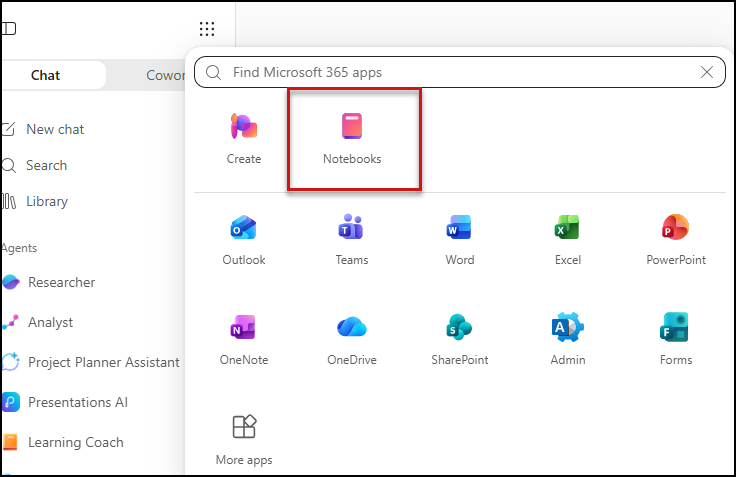
Update, October 2026: Microsoft’s own pages differ on which licenses include Notebooks, and some users without the paid license report a license error. Check your own tenant before you plan around it.
I ask every class the same question: “How many of you have used Copilot Notebooks?” A few hands go up. Then I ask: “How many of you have used it for something other than taking notes?” Almost nobody.
That’s about to change — because Notebooks just became one of the most capable tools in the M365 suite, and most users have no idea.
First: The Licensing Picture Is Changing
If you’ve been holding off because Notebooks required the paid Microsoft 365 Copilot license, that may be changing. In June 2026 Microsoft began rolling Notebooks out to Copilot Chat users, but its pages still differ on exactly who gets it. Check your own tenant.
The difference between tiers: Copilot Chat users can add standard files (Word, Excel, PowerPoint, PDFs, images, web links). M365 Copilot users get premium sources — SharePoint sites, Teams meeting transcripts, Outlook email threads — and advanced document generation. But the core Notebooks experience, including mind maps and study guides, is now broadly available.
Bottom line: Before your next training session, check whether your students already have Notebooks sitting in their M365 app launcher. Many of them do.
What Notebooks Actually Is (And Isn’t)
Think of Notebooks as a grounded project workspace, not a chat window. You bring your references — files, meeting notes, web links, SharePoint content, OneNote pages — into one place, and Copilot reasons across all of them together.
The difference from regular Copilot Chat is significant. In Chat, Copilot casts a wide net across your entire M365 environment. In a Notebook, it works only from what you’ve added. That means more focused, relevant answers — and answers you can trust because you control the sources.
The Features Nobody Talks About
Audio Overviews — GA Now
Add your references, click Audio Overview, and Copilot generates a spoken summary you can listen to like a podcast. I’ve watched people generate an audio overview of a 40-page project document and listen to it on the way to the steering committee meeting.
Practical use: Drop last quarter’s project notes into a Notebook Monday morning. Generate an audio overview. Listen during your commute. Walk into your 9 AM fully oriented.
Mind Maps — GA Since May 2026
This is the one that gets the loudest reaction in class. Copilot generates an interactive visual map of the topics, themes, and relationships across everything in your Notebook. Click any node and get a summary. Click deeper and open a chat about that specific concept.
For anyone managing a complex project, onboarding to a new initiative, or trying to make sense of a pile of documents — this replaces a whiteboard session.
💡 Pro tip: Use a mind map at the start of a team meeting to align on scope. Drop all the project files into a Notebook, generate the map, share your screen. Takes 30 seconds and you’re all looking at the same picture.
Study Guides — GA Now
Originally designed for education, but works just as well for corporate onboarding and training prep. From your Notebook, generate a Study Guide that includes:
- A summary of the key material
- Deep-dive topic pages
- Flashcards and quizzes auto-generated from your content
I use this to build quick knowledge checks for clients rolling out new processes. Add the process documentation to a Notebook, generate the Study Guide, use the quiz to verify comprehension. No manual question-writing required.
Document, Spreadsheet, and Presentation Generation — GA Now
From your Notebook’s Create menu, you can generate a Word document, Excel spreadsheet, or PowerPoint presentation directly from your collected references. Add your notes, research, and source files — Copilot turns them into a polished first draft grounded in what you’ve added, not generic content.
The workflow that changes everything: spend 20 minutes adding your project files and notes to a Notebook, then generate your status report, executive summary, and slide deck in three clicks. All three pull from the same sources. All three stay consistent with each other.
Sharing — With an Important Privacy Detail
Notebooks can be shared with colleagues or with an entire M365 Group — meaning you share once and access automatically updates as people join or leave the group. No more adding individuals one by one.
Here’s what corporate users almost always ask: “If I share my notebook, does my team see my conversations with Copilot?”
No. Chats within shared notebooks remain private to each user. Your colleagues see the references and any Pages you’ve created together, but not your individual Copilot conversations. And file access follows existing permissions — sharing a Notebook doesn’t override SharePoint or OneDrive permissions on the underlying files.
The OneNote Question
Yes, Notebooks and OneNote are related — and the relationship matters for how you work.
The Microsoft 365 Copilot app (accessible at microsoft365.com) gives you a lighter, faster three-column Notebooks experience: references on the left, chat in the middle, generated artifacts on the right.
OneNote gives you the fuller workspace experience with deeper note organization. The key point: they stay in sync. Start a Notebook in the M365 app, open it in OneNote to add structured notes, come back to the M365 app to generate artifacts. Same notebook, no lost context.
If your team lives in OneNote, they don’t need to change their workflow. Notebooks is where they already are.
The Quick Takeaway
Copilot Notebooks is no longer a note-taking tool with some AI bolted on. It’s a project workspace where your documents, meetings, and research become the source material for audio overviews, mind maps, study guides, and generated documents — shared with your team, synced across OneNote and the M365 app.
And as of mid-June, most of your M365 users already have access.
The question isn’t whether to use it. The question is which project you’re going to set it up for first.
Ready to go deeper? I cover Copilot Notebooks hands-on in my M365 Copilot training sessions. Check upcoming classes at sharepointmentoring.com — or reach out if your team needs a focused session on getting Notebooks into your workflow.
💡 Test your knowledge: Try the free Copilot Knowledge Review at sharepointmentoring.com — scenario-based questions covering M365 Copilot, Power BI, Power Automate, SharePoint, and more. No login required.