
Power Automate for Beginners: 5 Workflows That Will Save You Hours Every Week
Ever feel like you’re stuck in a loop of repetitive, manual tasks? Copying files, chasing approvals, manually entering data—it’s a time drain that keeps you from focusing on what really matters. After years of helping clients escape this cycle, I’ve seen firsthand how a little automation can be a game-changer. The best tool for the job? Microsoft Power Automate.
If you’re new to Power Automate, it can seem intimidating. But trust me, you don’t need to be a developer to start saving serious time. Here are five simple, high-impact workflows you can build today.
1. Save and Organize Email Attachments Automatically
The Problem: You receive important attachments via email all day—invoices from vendors, reports from your team, contracts from clients. Manually saving each one to the correct SharePoint or OneDrive folder is tedious and error-prone.
The Simple Way:
This flow automatically grabs attachments from specific emails (e.g., from a particular sender or with a certain subject line) and saves them directly to a designated folder. No more drag-and-drop!
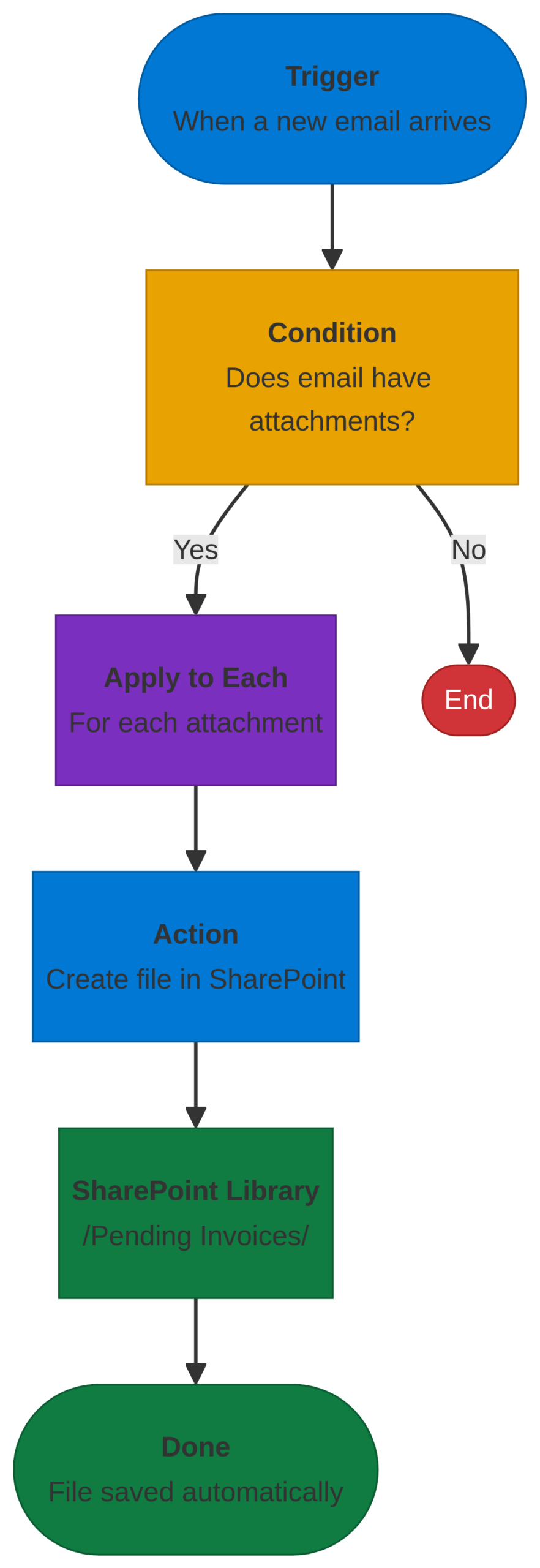
- Trigger: “When a new email arrives (V3)”
- Action: “Create file”
Real-World Example: One of my clients in accounting used to spend an hour every morning sorting invoices. We set up a flow to automatically save all emails with “Invoice” in the subject to a “Pending Invoices” SharePoint library. It completely eliminated that manual sorting and let them focus on processing payments faster.
2. Get Push Notifications for Important Emails
The Problem: You’re waiting for a critical email from a major client or your boss, forcing you to constantly check your inbox and creating a major distraction.
The Simple Way:
- Trigger: “When a new email arrives (V3)” (from a specific person)
- Action: “Send me a push notification”
This flow sends an alert directly to your phone via the Power Automate app the moment that important email lands in your inbox. You can stay focused on your work, confident you won’t miss it.
Pro-Tip: Add a condition to only trigger the notification if the email is marked as “High Importance.” This adds another layer of filtering so you only get alerts for what truly matters.
3. Simplify Your Approval Processes
The Problem: Getting approvals for documents, vacation requests, or project proposals often involves a long chain of emails, follow-ups, and confusion. It’s slow and impossible to track.
The Simple Way:
- Trigger: “When a new item is created” (in a SharePoint list)
- Action: “Start and wait for an approval”
When someone submits a request to a SharePoint list, this flow automatically sends an approval request to the designated manager in both email and Microsoft Teams. The manager can approve or deny with a single click, and the requestor is instantly notified of the decision.
Real-World Example: We built this for a client’s HR department to manage time-off requests. It replaced a messy paper-based system, gave managers an easy way to approve requests on the go, and provided a clear, auditable record of every request in the SharePoint list.
4. Sync Events from a SharePoint Calendar to Your Outlook
The Problem: Your team uses a shared SharePoint calendar for project deadlines or events, but you live in your Outlook calendar. You’re constantly switching between the two to stay on top of your schedule.
The Simple Way:
- Trigger: “When an item is created or modified” (in a SharePoint calendar)
- Action: “Create an event (V4)” (in your Outlook calendar)
This flow automatically creates a corresponding event in your personal Outlook calendar whenever a new event is added to the team’s SharePoint calendar. It even updates the Outlook event if the SharePoint event changes.
Pro-Tip: Use the “Update event” action as well to ensure that if a meeting time or location changes on the SharePoint calendar, it’s automatically reflected in your Outlook. No more showing up to the wrong meeting room!
5. Collect Form Responses and Post to Teams
The Problem: You use Microsoft Forms to gather feedback, survey responses, or new sales leads. To share the results with your team, you have to manually export the data and email it or post it in a channel.
The Simple Way:
- Trigger: “When a new response is submitted” (in Microsoft Forms)
- Action: “Get response details”
- Action: “Post message in a chat or channel” (in Microsoft Teams)
This flow instantly takes a new form submission, formats it into a readable message, and posts it to a designated Teams channel. Your entire team can see new leads or feedback in real-time, right where they’re already working.
Real-World Example: A sales team I worked with implemented this to get immediate notifications for new leads from their website’s contact form. The first available sales rep could jump on the lead within minutes, dramatically improving their response time.
Your Turn!
These five workflows are just the beginning. The real power of Power Automate comes when you start identifying the unique, repetitive tasks in your own workday that are ripe for automation. What’s your biggest time-wasting task? Drop a comment below, and let’s brainstorm a flow to fix it!
Want to Learn More?
If you found this helpful, you’re ready to dive deeper. Check out:
- My upcoming workshops on advanced Power Automate techniques.
- The official Microsoft Power Automate documentation and community forums.
- The massive library of pre-built templates right inside Power Automate—they are a great way to learn!
Stay Connected
New course alerts & weekly blog posts. No spam, ever. Unsubscribe any time.