Most people open Word to create a document. Then they open PowerPoint for a deck. Then Excel for a workbook. Three apps, three contexts, three times you’ve stopped your flow to switch tools.
There’s a better way — and it rolled out quietly in July 2026. Most of your colleagues have no idea it exists.
What It Is
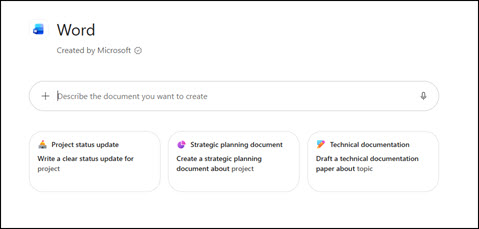
Inside Microsoft 365 Copilot Chat, you can now @mention the Word, Excel, or PowerPoint agent directly in your prompt. Type @Word, @Excel, or @PowerPoint — select the agent — and it joins your conversation. Then just describe what you want created.
No app switching. No blank page staring back at you. No reformatting after pasting from chat into a document.
The agent builds it, then hands you a file ready to open and refine.
Why This Is Different From Regular Copilot
Regular Copilot Chat answers questions and generates text. You still have to take that output and do something with it.
The @mention agents actually do the work. The Excel agent builds a multi-tab workbook complete with formulas and structured models. The Word agent drafts long-form documents with proper structure — reports, proposals, guides. The PowerPoint agent generates a full deck grounded in your files, meetings, and emails through Work IQ.
The agents intelligently decide when to pull from your enterprise data versus web research — and once the file exists, you switch to in-app agent mode for precise iterative edits. That’s the workflow: create in Chat, refine in the app. Two modes, clear purpose for each.
Three Scenarios That Show the Real Value
Scenario 1 — The Monday morning report
You have meeting notes, last week’s data, and a few emails with key updates. Instead of opening Excel and building from scratch, type: “@Excel create a weekly status workbook with tabs for KPIs, action items, and risks, using the files I’ve attached.” The workbook comes back structured and ready to populate.
Scenario 2 — The proposal nobody wants to start
Everyone on the team has context but nobody wants to write the first draft. Drop your reference files into Copilot Chat and type: “@Word draft a project proposal with sections for Executive Summary, Scope, Timeline, and Budget based on these files.” First draft done in under a minute. Now the team is editing, not staring at a blank page.
Scenario 3 — The slide deck from nothing
You have 45 minutes before a leadership update and no slides. Type: “@PowerPoint create a 10-slide executive update deck on Q3 project status, grounded in my recent Teams meetings and emails.” Work IQ pulls your actual context. You get a real first draft, not a generic template.
The Workflow Rule Worth Remembering
Microsoft’s own product team put it clearly: use the agents in Copilot Chat for creation from scratch, then switch to in-app agent mode for precise edits once the file exists.
That distinction matters. Copilot Chat agents are optimized for generating the initial artifact. In-app Copilot (inside Word, Excel, or PowerPoint) is optimized for targeted changes — reformatting a section, adjusting a formula, changing slide layout. Use each for what it does best.
💡 Pro tip: You can @mention more than one agent in the same conversation. Start with @Word for a proposal, then @PowerPoint to turn the key points into a deck — all in one chat session without switching apps.
Licensing Note
This feature requires a Microsoft 365 Copilot license ($30/user/month). It is not available in free Copilot Chat. If you or your team are on M365 Copilot and don’t see the @mention agents yet, check that your admin has enabled the Copilot app — Microsoft resumed automatic installation on eligible Windows devices in July 2026, but some organizations opted out.
The Quick Takeaway
@mentioning Word, Excel, and PowerPoint agents in Copilot Chat isn’t a minor UI tweak — it’s a fundamentally different way to create. You stay in one place, describe what you need, and get a working file. The blank page problem is solved before you ever open the app.
If you’re already paying for M365 Copilot, this is sitting in your Chat right now. Type @ and see what shows up.
Want to see this in action? I cover the @mention agents and the full Copilot Chat workflow in my M365 Copilot training sessions. Check upcoming classes at sharepointmentoring.com or reach out if your team needs a hands-on session.
💡 Test your knowledge: Try the free Copilot Knowledge Review at sharepointmentoring.com — scenario-based questions covering M365 Copilot, Power BI, Power Automate, SharePoint, and more. No login required.